OverTheWire Bandit: Levels 0–5
I’m starting this OverTheWire Bandit wargames series while running some beginner-friendly CTF meetings for the cybersecurity club at my university. Since I’m already solving the levels ahead of time to help anyone who gets stuck during the meetings, I decided to document the process and share it here as well.
The format I’m going for is one where I walk through how I did each level — including the small detours, because the detours are usually where the actual learning happens. I also try to explain what each command is doing as I go, because copying a working command isn’t the same as understanding it. Passwords are redacted since the point is to learn and not to just copy and paste.
Level 0 — The SSH login
The first thing I had to notice on this level is that Bandit listens on port 2220, not the default 22.
ssh opens an encrypted remote login session. The -p flag tells it to connect on a non-default port, and bandit0@host is the usual username@hostname form. When I was prompted for a password, I typed bandit0 (it won’t echo as you type, that’s normal).
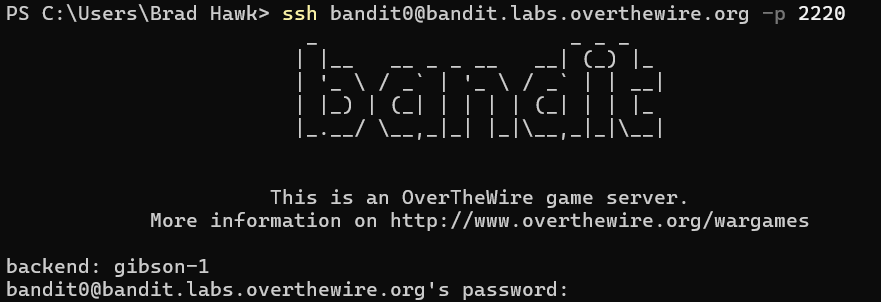
Once I was in, ls showed a readme, and cat readme printed the password for level 1.
Level 1 — A file named -
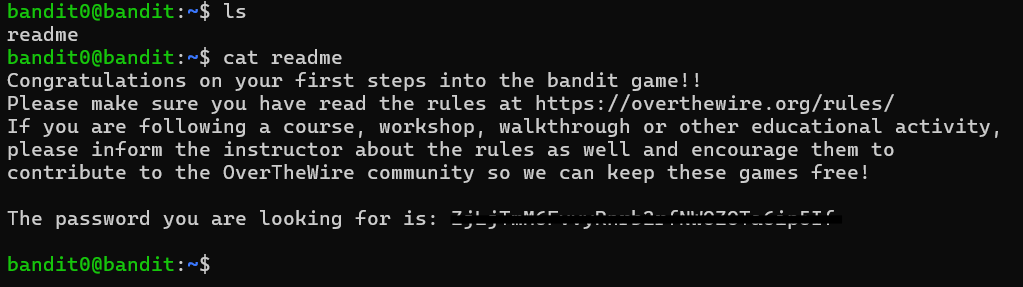
This is the first level that taught me a real shell concept: in most Unix tools, - is a stand-in for stdin. So when I tried to view the contents of the file using cat - it just waited for me to type input rather than reading a file. To view an actual file called -, I used a relative path, which I learned was a file or directory location that starts from your current working directory instead of the system root.
Level 2 — Spaces in the filename
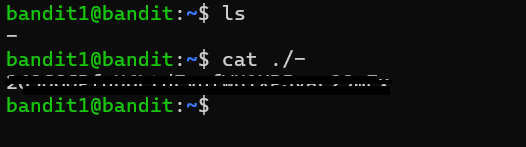
After SSHing into the Bandit server as the user bandit2, I first tried using cat ./--spaces in this filename--, but it did not work. I learned that when a filename contains spaces, the shell interprets each space as a separator and passes multiple arguments to cat instead of one complete filename. As a result, cat attempted to open several nonexistent files.
The solution was to tell the shell to treat the spaces as part of the filename by surrounding the filename with double quotes. I later learned that backslashes can also be used to escape spaces and achieve the same result. Both methods work, although I personally find quotes easier to read. The ./ before the filename was also important because the filename begins with --, which could otherwise be interpreted as command-line options instead of part of the filename.
Level 3 — The hidden file
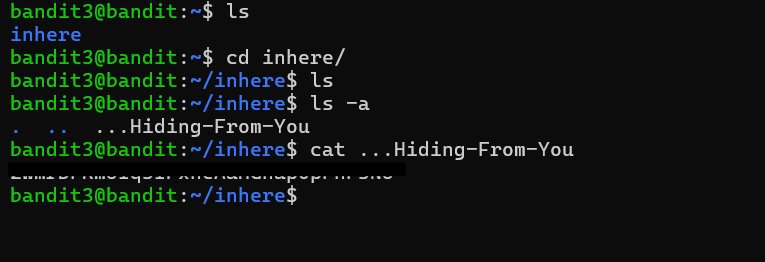
After entering the inhere directory, I initially used a regular ls, but I did not see the password file anywhere. I learned that files beginning with a dot are hidden by default in Unix systems, so a normal ls command will not display them. Using the -a option with ls shows all files, including hidden ones.
I ended up using ls -la because the -l option provides the long listing format, which includes details such as permissions, ownership, file size, and modification dates. While the extra information was not strictly necessary for this level, I wanted to get more comfortable reading file permissions since they become more important in later Bandit levels.
Once I used ls -la, I was able to see the hidden file named ...Hiding-From-You, which contained the password for the next level.
Level 4 — Finding the human-readable file among the binaries
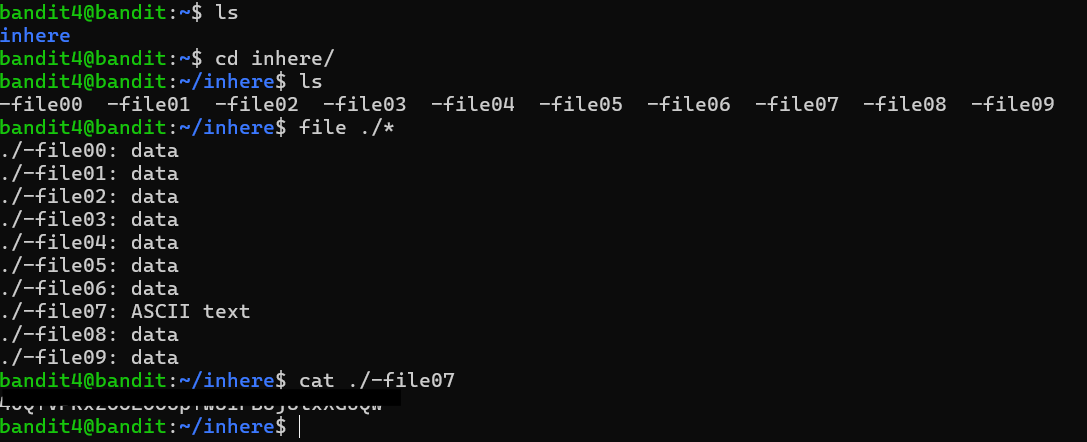
After entering the inhere directory, I realized that using cat on every file would not be very useful because cat simply prints a file’s contents directly to the terminal without checking what type of data the file contains. Since most of the files in this level were binary files rather than plain text, dumping them to the terminal would mostly produce unreadable output and could even interfere with the terminal display. Instead, I used the file command, which identifies what a file actually is before opening it.
The file command examines the magic bytes at the beginning of a file to determine its actual type rather than relying on the filename or extension. Magic bytes are small patterns of bytes stored at the start of a file that act like a identifier for the file format. For example, image files, PDFs, and executable files all have unique byte signatures that identify them regardless of what the file is named. This means that even if a filename has no extension, the magic bytes still reveal what the file actually contains.
Running file ./* showed that most of the files were labeled as data, meaning they were binary files, while one file was identified as ASCII text. That file was -file07, which contained the password for the next level.
Level 5 — Find by size, type, and permissions
The goal of this level was about how to search through a large directory structure efficiently using the find command. The inhere directory contained around twenty maybehere* subdirectories filled with files, so manually checking each one would have been slow and impractical. This is exactly the kind of situation find was designed for.
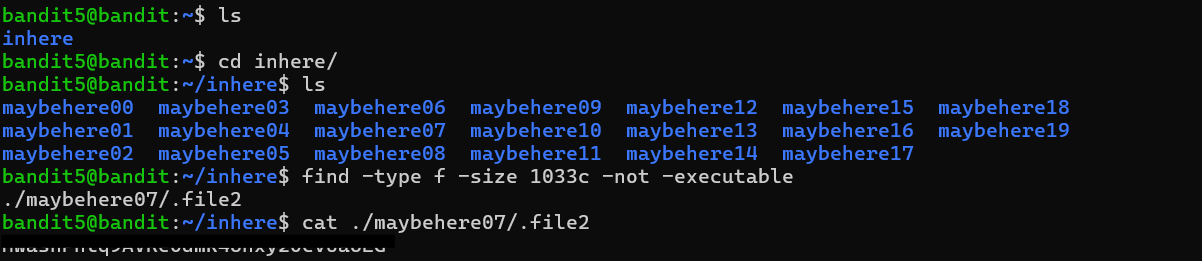
I learned that find walks through a directory tree recursively and allows multiple filters to be combined in a single search. The challenge specified three conditions: the file had to be human-readable, exactly 1033 bytes in size, and not executable. My first attempt searched for files with a size of 1033, but it returned nothing. I discovered that find interprets sizes as 512-byte blocks by default rather than raw bytes, so I needed to add the c suffix to search by exact byte count.
From there, I combined the filters together to search only for regular files that matched the correct size and did not have executable permissions set. The -type f option excluded directories and symbolic links, while ! -executable filtered out executable files. Once all the conditions were applied together, only one file matched: ./maybehere07/.file2.
This level mainly taught me how useful find becomes once directory structures get too large to navigate manually, and how combining filters can narrow a huge search space down to a single result very quickly.
This Week’s Takeaways
My biggest takeaway from these first six levels is that most beginner shell mistakes come from assumptions about how Unix tools interpret input. A filename with spaces becomes multiple arguments unless it is quoted, a leading - can be mistaken for a command flag, hidden files are ignored unless explicitly requested, and file extensions do not necessarily reflect what a file actually contains. Each level introduced a small Unix convention that initially felt unintuitive, but once I understood the reasoning behind it, the commands started to feel much more predictable.
More than anything, these levels taught me to stop treating commands like magic words and start thinking about what the shell is actually doing with the text I type. When something behaved differently than I expected, reading the manual pages and experimenting a little usually explained why. That habit of slowing down and understanding the behavior instead of memorizing commands is probably the most useful thing I have taken away from the early Bandit levels so far.
The next set moves from single commands into chaining them together — filtering, decoding, and following data across files in Bandit: Levels 6–11.