OverTheWire Bandit: Levels 18–23
Level 18 — The .bashrc that kicks you out
This level was my first reminder that an SSH session is really just a way of starting a shell on another machine. Normally, logging in over SSH launches the user’s default interactive shell, which then reads startup files such as ~/.bashrc.
In this case, the account’s .bashrc had been modified to immediately run exit. That meant a normal login succeeded, launched Bash, executed .bashrc, and instantly terminated the shell again. From my perspective, the SSH session connected and then immediately dropped me back to my local terminal before I could run any commands.
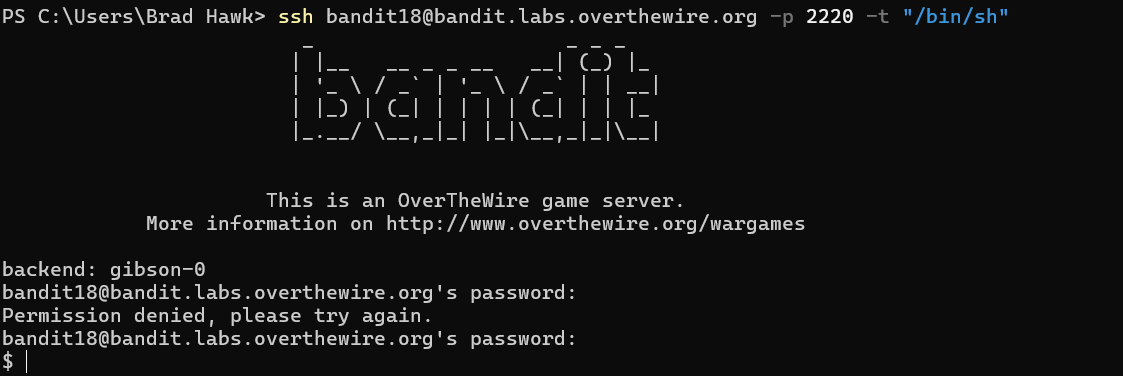
To get around that, I bypassed Bash entirely and forced SSH to start /bin/sh instead. I also used the -t flag, which forces SSH to allocate a pseudo-terminal for the session.
Because the session launched sh rather than bash, the malicious .bashrc file was never sourced, and the connection stayed open long enough for me to read the readme file containing the password.
This level introduced an important distinction between different shell startup modes. Login shells, interactive shells, and non-interactive shells all load different configuration files, which means changing how a shell is launched can sometimes bypass broken or hostile startup behavior. My practical takeaway was that when an interactive shell environment is failing because of a startup script, it is often still possible to either run a single command directly over SSH or force a different shell entirely.
Level 19 — The setuid wrapper
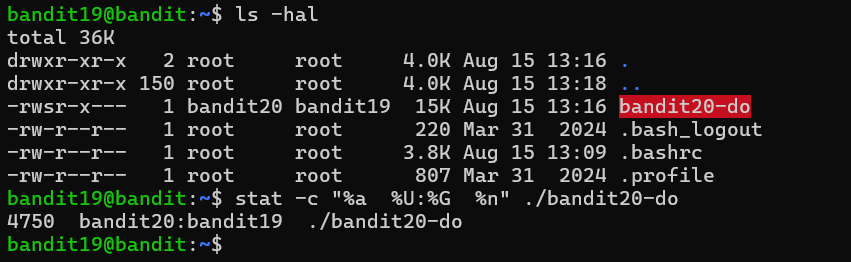
This level introduced the setuid permission bit, which changes how a program executes on Linux. Normally, a process runs with the permissions of the user who launched it. A setuid binary is different: when executed, the process temporarily runs with the permissions of the file’s owner instead.
In this case, the home directory contained a setuid binary owned by the next Bandit user. Running the program without arguments displayed its usage information, which revealed that it would execute a command passed to it as an argument.
That detail was the key to the level. Because the binary itself ran with the next user’s permissions, any command executed through it also inherited those permissions. I normally could not read /etc/bandit_pass/bandit20, but running cat /etc/bandit_pass/bandit20 through the setuid wrapper allowed the command to execute with sufficient privileges to access the file.
This level was my first real exposure to privilege escalation concepts on Linux. A setuid program that can execute arbitrary commands effectively becomes a mechanism for running commands as another user, and the security of that setup depends entirely on which commands are allowed. This same pattern appears frequently in real systems through sudo rules and privileged helper programs.
It also introduced me to resources like GTFOBins, which catalogs Unix binaries that can be abused for privilege escalation, shell escapes, or file access under certain permission configurations. Tools such as vim, less, or find can become surprisingly powerful when executed with elevated privileges.
If I want to explore Linux permissions more deeply beyond Bandit, PWN.College has an excellent set of practice modules covering concepts such as setuid, setgid, and the sticky bit.

Level 20 — Connect-back with suconnect
This level inverted the normal client/server relationship from the previous networking challenges. Instead of connecting to a service and sending it data manually, I was given a setuid binary that would connect back to a port that I specified. If the binary received the correct password from that connection, it would return the password for the next level.
That meant I needed to become the server. I used nc in listening mode to open a local port and prepare a response containing the current level’s password. By placing the listener in the background with &, I could start the listener and still regain my shell prompt in the same terminal session to launch the setuid binary.
Once the listener was running, executing the binary caused it to connect back to my waiting nc process. The listener sent the expected password, the binary validated it, and the next level’s password was returned across the same connection and printed to my terminal.
My first attempt failed because the listener was not fully ready when the connection occurred. Adding the -n flag to nc, which disables DNS lookups, made the connection establish immediately and solved the issue.
More than anything else, this level taught me to think more carefully about networking directionality. Sometimes the target is not the server I connect to — sometimes the target expects to connect back to me instead. That same pattern appears frequently in reverse shells, callbacks, and many real-world client/server exploitation scenarios.


Level 21 — Cron, the world-readable leak
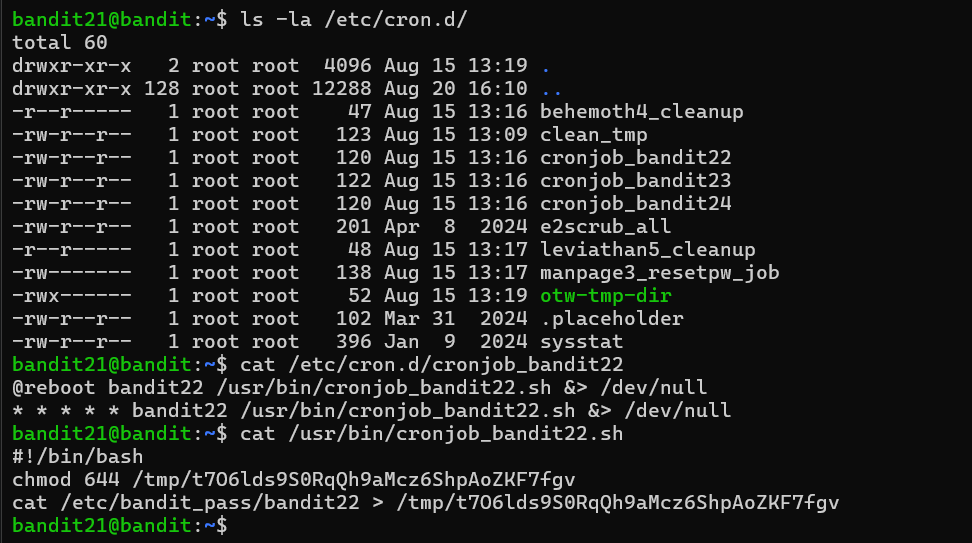
This level introduced cron jobs, the scheduled task system used on most Linux machines. Cron configurations are commonly stored under /etc/cron.d/, where each entry specifies which command should run, how often it should run, and which user account should execute it.
Inspecting the cron configuration revealed that a script named /usr/bin/cronjob_bandit22.sh was being executed automatically as bandit22 every minute. Reading the script itself showed the important behavior: it copied the password for bandit22 into a file under /tmp and then changed the file permissions to 644.
On Linux, 644 means the owner can read and write the file while every other user on the system can still read it. In practice, the cron job was leaking the next level’s password into a world-readable temporary file once every minute. Once I identified the output path inside the script, retrieving the password was as simple as reading that file.
This level highlighted a very real security issue that appears surprisingly often on production systems: sensitive information written to globally accessible locations such as /tmp. Temporary directories frequently end up containing debug logs, cached credentials, backups, or other data that was never meant to be readable by every user on the machine. Because of that, /tmp is one of the first places I would inspect on an unfamiliar Linux system when looking for accidental information disclosure.

Level 22 — Cron with a derived filename
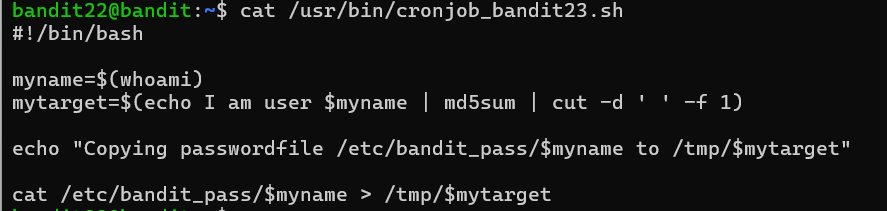
This level followed the same general pattern as the previous cron challenge: inspect the scheduled job, read the script it executes, and figure out where the password ends up. The difference this time was that the script did not write to a fixed filename. Instead, it generated the output filename dynamically using an MD5 hash.
Reading the script revealed that it generated a hash from the fixed string "I am user bandit23" using md5sum, then extracted only the hash value with cut and stored the result in a variable used as the output filename.
Since both the algorithm and the input string were visible in the script, I did not need any special privileges to reproduce the same computation myself. Running the exact same command sequence locally produced the same hash value, which allowed me to predict the filename the cron job was writing to under /tmp.
Once I knew the filename, retrieving the password was simply a matter of reading the generated file.
The important lesson from this level was that deterministic values are not truly secret just because they look random. If an identifier is generated from predictable inputs using a visible algorithm, anyone who can reproduce the calculation can predict the output as well. The same principle appears frequently in real systems through weak token generation, predictable filenames, timestamp-derived identifiers, and poorly designed password reset links.

Level 23 — Cron with the writable spool
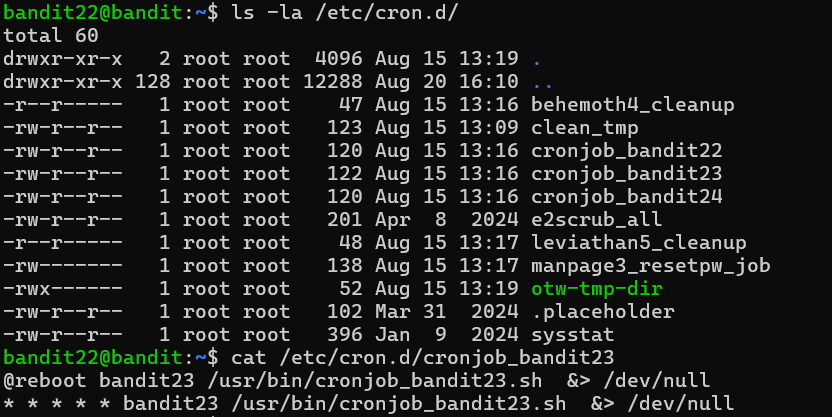
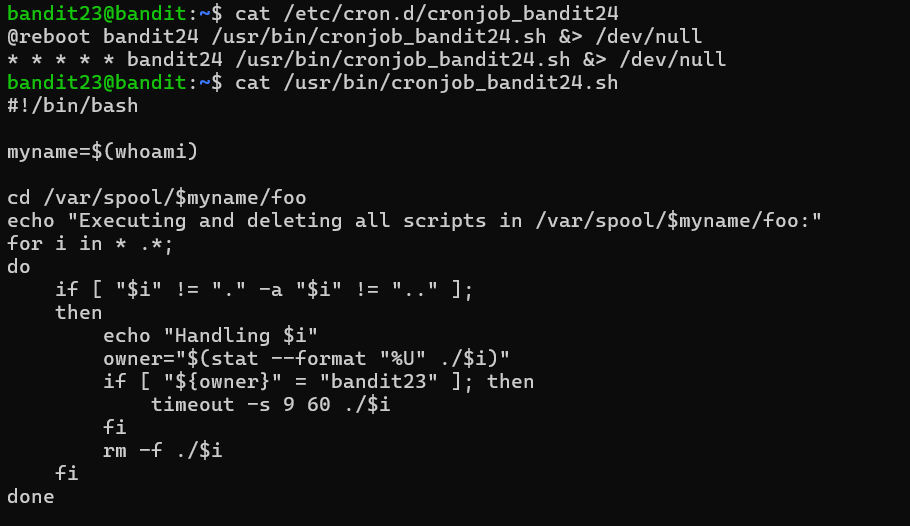
This level was the first one in the series where I had to write my own shell script instead of simply inspecting existing files or services. After checking the cron configuration under /etc/cron.d/, I found a job that executed a script as bandit24 every minute.
Reading the script revealed the important behavior: it looped through every file inside /var/spool/bandit24/foo/, executed each file as bandit24, and then deleted it afterward. The critical mistake was that the spool directory was writable by other users, including bandit23.
That meant I could place my own script into the directory and have the cron job execute it with bandit24’s privileges. My approach was to create a small shell script that copied /etc/bandit_pass/bandit24 into a temporary location under /tmp and then changed the permissions on the copied file so I could read it afterward.
One subtle detail was that the cron job only executed files owned by bandit23. Since I was already logged in as bandit23 when I created the script, that ownership check passed automatically.
After making the script executable and placing it into the spool directory, I waited for the next cron execution cycle. The cron job ran my script as bandit24, the password file was copied into my temporary directory, and I could then read the resulting file normally.
This level demonstrated one of the most dangerous privilege-escalation patterns on Linux: a privileged process executing attacker-controlled files from a writable directory. Once a higher-privileged service begins trusting and executing content that lower-privileged users can modify, privilege escalation becomes almost inevitable. The exact details vary across real systems, but the core lesson transfers directly: any automated task that executes files from directories it does not strictly control is a major security risk.




This Week’s Takeaways
These levels shifted the focus away from simply using Linux tools and toward understanding trust relationships inside a system. The recurring question across the cron challenges was no longer just “where is the password?” but “what privileged process is running here, what does it trust, and can that trust be abused?”
The progression became very consistent: inspect the scheduler configuration, read the script being executed, identify what assumptions the script makes about files, ownership, or permissions, and then use those assumptions to gain access to the next account. By the final cron level, the game felt much closer to real privilege-escalation work than puzzle solving.
More than any specific command, these levels taught me to think about Linux systems in terms of execution context and trust boundaries: who is running a process, which files that process can access, and whether lower-privileged users can influence its behavior. That mindset transfers directly into real-world system hardening and security auditing far beyond the Bandit wargame.
The final stretch leans into brute force, restricted-shell escapes, and Git archaeology in Bandit: Levels 24–29.