OverTheWire Bandit: Levels 24–29
Level 24 — Brute force a 4-digit PIN
This level introduced brute forcing in a very controlled environment. The daemon listening on port 30002 expected input in the form "password pin" and would either reject the attempt or return the password for the next level. Since the PIN was only four digits long, there were exactly 10,000 possible combinations to try.
The important detail was that the service accepted multiple attempts over a single TCP connection. Instead of opening 10,000 separate connections, I could generate every possible PIN locally and stream all of the attempts through one nc session.
I first stored the current level’s password in a shell variable so the script would not repeatedly read the password file during every iteration. Then I used seq -w 0000 9999 to generate every four-digit PIN with zero padding preserved. The -w flag forces fixed-width output, which mattered because the daemon expected values like 0007 rather than just 7.
A shell loop generated lines in the format "password pin" for every possible combination, piped them into nc, and then filtered the daemon’s responses with grep -v to remove repeated failure messages and other noise. Once the incorrect responses were filtered out, the only meaningful output left was the success message containing the password for bandit25.
The main lesson I took from this level was that when a service supports batched requests over a persistent connection, batching is usually the right approach. Reusing a single socket is far more efficient than repeatedly reconnecting, and in real systems it can also help avoid connection limits, timeouts, or rate-limiting behavior.

Level 25 — Escape from more
This level introduced restricted-shell escape techniques, and it ended up being one of the most memorable levels in the entire game for me.
I was given an SSH key for bandit26, but every time I logged in, the session immediately disconnected. A banner flashed across the screen for a split second, and then I was dropped straight back to my local terminal.
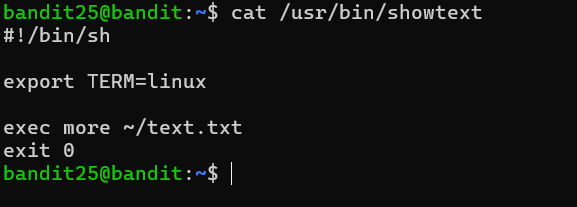
Looking at the account entry in /etc/passwd explained why. Instead of using /bin/bash as its login shell, bandit26 used a custom program called /usr/bin/showtext. That script simply launched more on a text file and then exited. Since the entire SSH session consisted of one invocation of more, the connection closed as soon as the pager terminated.
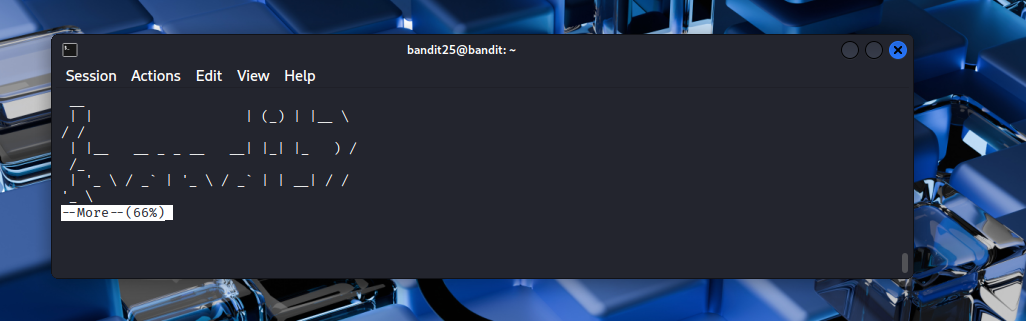
The key insight was realizing that if the terminal window was small enough, more would pause for pagination instead of displaying the entire file immediately and exiting. I resized the terminal to only a few lines tall and logged in again. This time, more stopped at a --More-- prompt waiting for input.
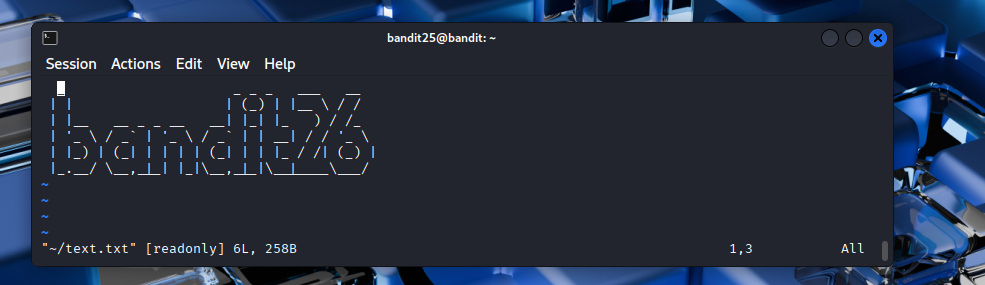
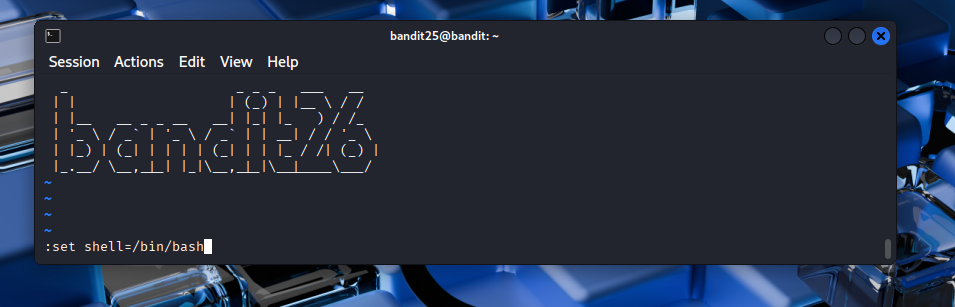
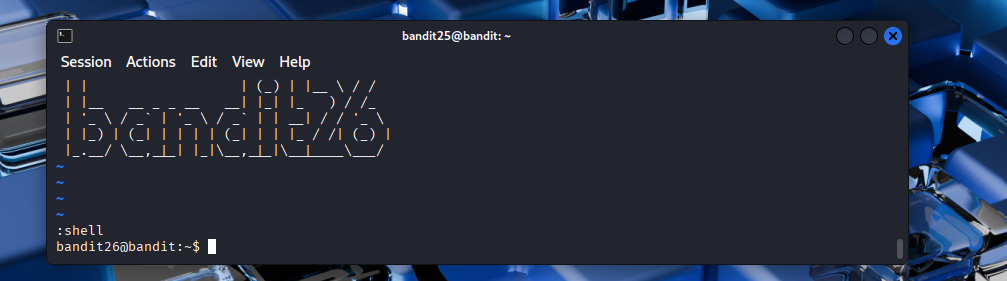
From there, pressing v launched vi on the file currently being viewed. Since vi was running with bandit26’s privileges, I now had access to all of vi’s built-in functionality, including the ability to spawn a shell. After setting the shell to /bin/bash and running :shell, I finally landed in a real interactive Bash session as bandit26.
flowchart LR
  A["Login shell = more (pager)"] --> B["Shrink terminal →<br>more pauses at --More--"]
  B --> C["Press v → opens vi"]
  C --> D[":set shell=/bin/bash"]
  D --> E[":shell → bash as bandit26"]
This level taught me one of the most practically useful ideas in the entire wargame: many “restricted” environments still contain tools capable of escaping into a normal shell. Pagers, editors, debuggers, and other interactive utilities often expose shell escape functionality if they are not carefully locked down. The sequence in this level — restricted shell → pager → editor → shell escape — is a pattern that appears surprisingly often in real restricted-shell and privilege-escalation scenarios.
Resources like GTFOBins exist specifically to catalog these kinds of escape techniques across common Unix programs.



Level 26 — The setuid wrapper, again
This level reused the same setuid-wrapper pattern from the earlier bandit20-do challenge. After finally escaping the restricted shell in the previous level, the actual path to bandit27 turned out to be much simpler.
The home directory contained a setuid binary named bandit27-do. Like the earlier wrapper, it was owned by the next Bandit user and configured with the setuid bit, meaning any command executed through it would run with the owner’s privileges rather than mine.
Since the binary accepted an arbitrary command as an argument, I could simply use it to run cat /etc/bandit_pass/bandit27. The wrapped command executed with bandit27’s permissions, which allowed it to read the otherwise inaccessible password file.
Conceptually, this was the same privilege-escalation mechanism as before: a privileged wrapper binary delegating command execution to another user context. The difference here was mostly narrative pacing — after the long restricted-shell escape in the previous level, this one felt like a brief pause to apply a pattern I already understood.

Level 27 — Git clone over SSH
This level introduced interacting with Git repositories over SSH. The repository was hosted locally on port 2220, and authentication used the same password as the bandit27 account from the previous level.
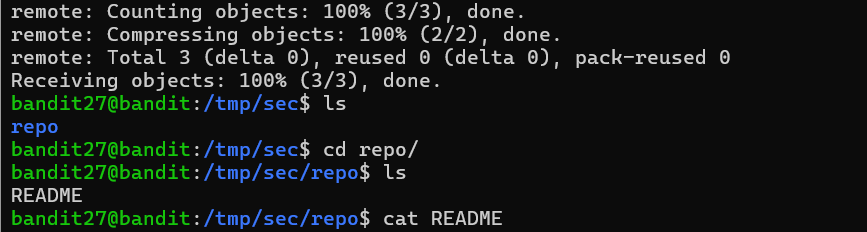
To retrieve the repository, I used git clone with the full ssh://user@host:port/path URL format. The explicit URL form mattered because the shorter user@host:path syntax used by SSH does not provide a clean way to specify a non-standard port.
After cloning the repository into a temporary working directory under /tmp, I inspected the contents and found that the README file directly contained the password for the next level. Unlike the later Git challenges, there was no history analysis or branch exploration required yet.
This level also clarified something useful about how Git operates over SSH. git clone is not using a completely separate networking protocol — Git is effectively driving a normal SSH connection to the remote machine and interacting with the repository on the other side. Any server accessible through SSH can potentially host a Git repository, which is why Git remotes often look very similar to ordinary SSH connection strings.


Level 28 — Git log archaeology
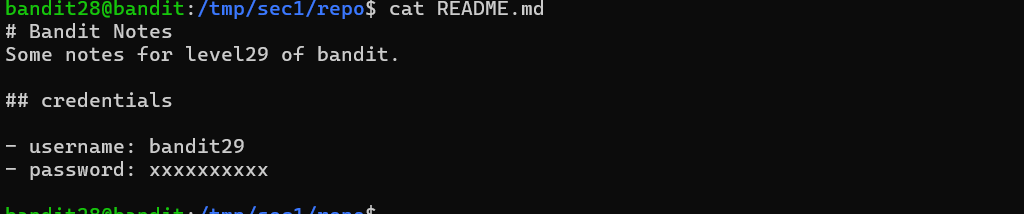
This level was my first real introduction to Git history as something permanent rather than just a timeline of edits. The repository initially looked clean — the README only contained placeholder text where the password should have been — but the challenge hint strongly suggested that the secret had existed in an earlier commit.
To inspect the commit history, I used git log -p. The git log command walks backward through the repository’s history, and the -p flag tells Git to include the patch diff for each commit alongside its metadata.
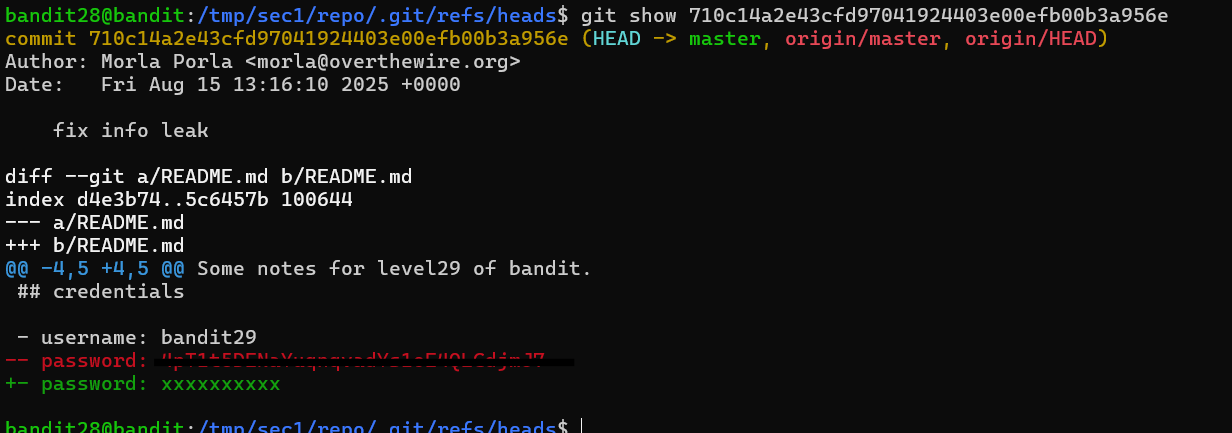
In Git diffs, added lines are prefixed with + while removed lines are prefixed with -. Eventually, one of the commits showed the password being removed from the README, and the deleted line itself still appeared directly in the diff output.
I could also inspect individual commits more directly with git show <commit-hash>, which displays the exact changes introduced by a specific commit. Since Git stores complete historical snapshots, deleting sensitive information from the latest version of a file does not remove it from the repository’s history automatically.
This level ended up being one of the most memorable Git lessons in the entire game for me because it mirrors a very common real-world security mistake. Developers frequently commit credentials, API keys, or secrets by accident, remove them in a later commit, and assume the problem is solved. In reality, the secret usually remains accessible throughout the repository history unless the history itself is actively rewritten. That exact problem is why platforms like GitHub Secret Scanning exist in the first place.

Level 29 — The dev branch
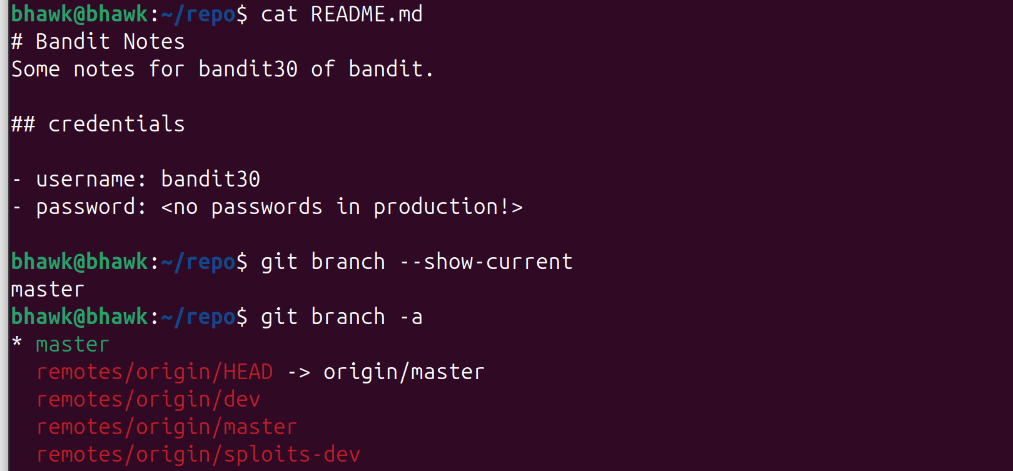
This level built directly on the previous Git challenge, except this time the password was not hidden in commit history — it was stored on a different branch entirely.
After cloning the repository, the default branch only contained placeholder text. The important clue was realizing that a Git repository can contain multiple parallel branches with different file contents and histories.
To see every branch known to the repository, including remote-tracking branches, I used git branch -a. Without the -a flag, Git would only show local branches, which after a fresh clone is usually just the default branch. Using -a revealed the existence of a remote dev branch.
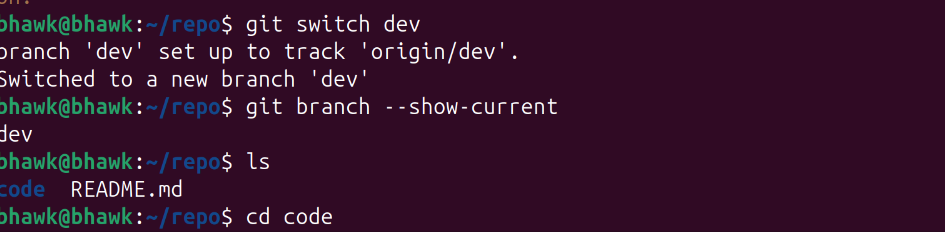
I then switched to that branch using git switch dev. The older git checkout dev command would have worked too, but switch is the newer command designed specifically for branch changes, while checkout handles several unrelated behaviors at once.
Once the branch changed, the working directory updated automatically to reflect the contents of dev, and the README on that branch contained the actual password for the next level.
This level reinforced an important idea about Git repositories: the visible files in the current working tree only represent one branch at one point in history. Valuable information can exist in other branches, older commits, tags, or remote references even when the default branch appears clean. It also introduced me to the distinction between local branches and remote-tracking branches, which is something I had been using casually for years without really understanding how Git represented them internally.
This Week’s Takeaways
These levels rounded out a completely different side of the toolkit from the earlier networking and cron challenges. The pager escape on level 25 was probably the single most broadly useful trick I learned from the entire wargame because restricted shells built around pagers, editors, or helper programs show up surprisingly often on real systems. Once I understood the pattern — find an interactive program, pivot into something more powerful, then escape into a shell — a lot of previously mysterious “restricted environment” problems started making more sense.
The Git levels were also where my mental model of Git changed pretty dramatically. I had been treating Git mostly as a synchronization tool for years, but these challenges forced me to think about it as a database of historical state. Branches, deleted commits, removed secrets, and remote refs all continue to exist until someone deliberately rewrites history. That is exactly why leaked credentials so often survive long after developers think they have been removed.
More than anything else, these levels reinforced the idea that security problems often come from tooling behaving exactly as designed — pagers exposing editors, editors exposing shells, Git preserving history forever — rather than from obvious software bugs.
The last few levels finish the Git deep-dive and circle back to restricted shells in Bandit: Levels 30–34.